Product
Proctor AI Now Works Inside Moodle
October 2026 · 4 min read · By Upendra Gariminti
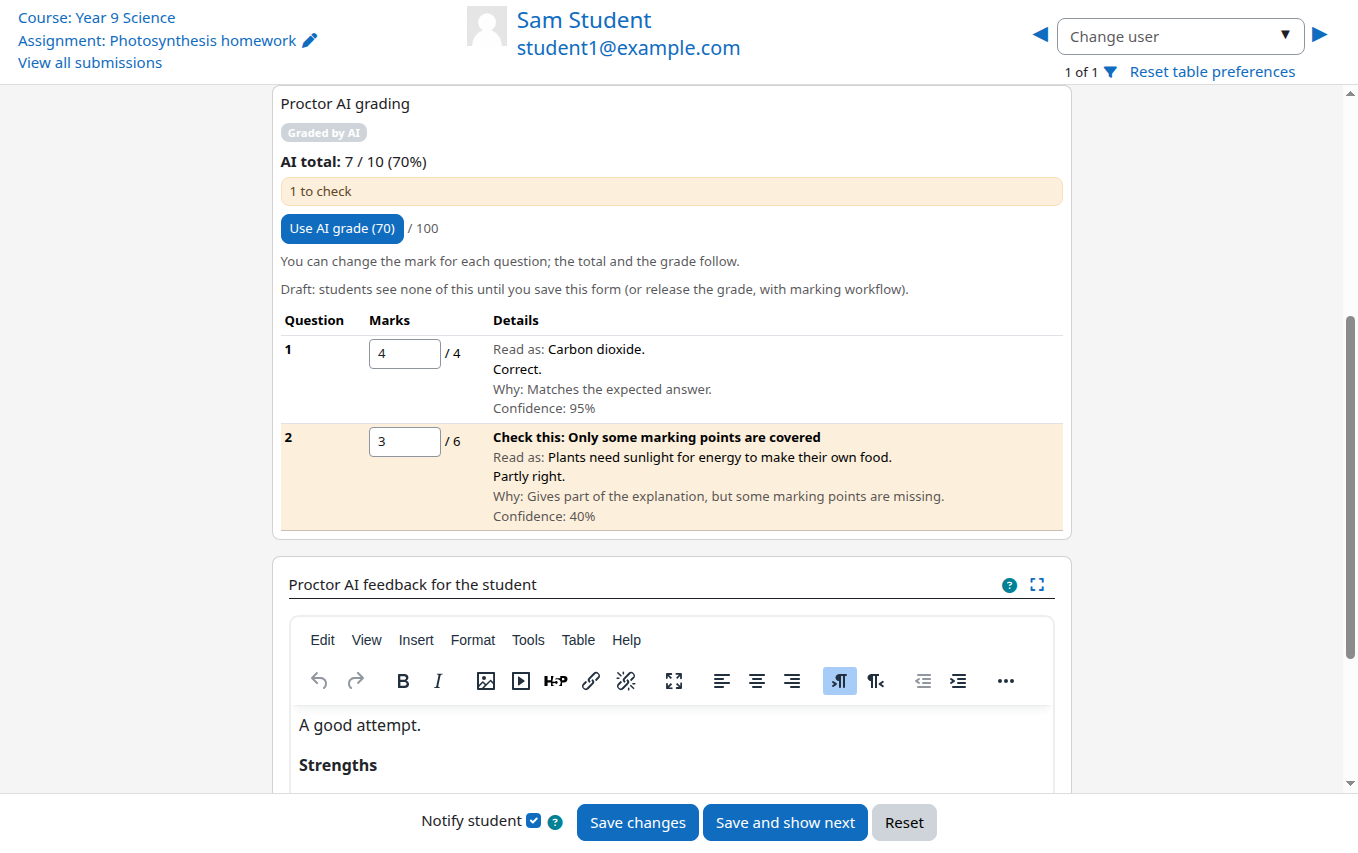
If your school runs Moodle, here is the short version: Proctor AI now works inside it. Students hand in their assignment the way they always do. Proctor AI marks every question against your marking key. You check the marks in Moodle's own grader, change whatever you disagree with, and release the grades when you are happy. That's it.
Why we built it
A lot of schools collect homework, worksheets and tests on Moodle. Until now, using Proctor AI meant downloading every submission from Moodle, uploading it to Proctor AI, then typing the marks back into Moodle one student at a time. It worked, but it was the kind of busywork we started Proctor AI to get rid of.
So we went to where the papers already are. The plugin is a normal Moodle assignment feedback plugin. Your administrator installs it once, and from then on it is just another option in the assignment settings.
What it does
- Reads handwriting from photos (including iPhone photos) and scanned PDFs up to 20 pages, as well as typed answers.
- Marks each question against the marking key you write, with the expected answer if you give one.
- Shows you what it read from the page, why it gave each mark, and how sure it is. Answers it is unsure about are highlighted.
- Lets you change any mark, edit the feedback, and release grades only when you decide.
- Grades the students you pick, everyone not graded yet, or each submission as it arrives.
The AI does the reading and the first pass. The teacher stays the person who decides the grade. That was the rule we built the whole plugin around.
What it doesn't do
It never shows a student an unchecked mark. It never overwrites a grade a teacher already gave. And it never sends anything to us until your Moodle administrator ticks a consent box in the settings. Student names, emails and ID numbers are not sent at all.
How to start
- Download the plugin: Get the ZIP file from our Moodle plugin page.
- Install it: Your Moodle administrator uploads it under Site administration, Plugins, Install plugins.
- Connect your account: Create an API key in Proctor AI, paste it into the plugin settings and tick the consent box.
- Turn it on in an assignment: Tick Proctor AI grading under Feedback types, write the marking key, and you are ready.
The complete walkthrough, with a screenshot of every step, is in our Moodle setup guide. If something doesn't work the way you expect, tell us. This is version 0.2.0 and we read every message.
Frequently asked questions
Is the Proctor AI Moodle plugin free?
Yes. The plugin is free and open source. Grading is paid from your prepaid Proctor AI balance, and Moodle shows the price before anything is sent.
Which Moodle versions are supported?
Moodle 4.5, 5.0, 5.1, 5.2 and 5.3.
Do I need to change how students submit?
No. Students hand in photos, a scanned PDF or typed text in the normal Moodle assignment.