Guides
How to Grade Handwritten Assignments in Moodle (Without Printing Anything)
October 2026 · 7 min read · By Proctor AI Team
Moodle quizzes are brilliant for multiple choice. But a lot of real learning still happens on paper: maths working, a labelled diagram, a paragraph explaining why the French Revolution happened. Students can still hand that work in on Moodle, as photos or a scanned PDF. The question is how you mark it without printing it all out again.
How students hand in handwritten work
Use a normal Assignment activity with File submissions turned on. Set the maximum number of files to the number of pages you expect, and allow image files and PDFs. Students then either photograph each page with their phone or scan the whole thing to one PDF.
A single PDF is easier to mark because the pages stay in order. Free phone apps like the scanner built into the iPhone Notes app or Google Drive on Android turn photos into a clean PDF in seconds. If students upload photos instead, ask them to name the files page1, page2 and so on.
Option 1: Annotate in Moodle's grader
Moodle can show PDF submissions in the grader and let you write comments on top. It is free and built in. The trouble is time. You still read every answer, work out every mark and type it in. For a class of 40 with five long questions each, that is the same evening it always was, just on a screen.
Option 2: Mark on paper and type the grades in
Some teachers print the submissions and mark them the old way. It is comfortable, but you lose the main benefit of Moodle: everything in one place, with feedback students can see.
Option 3: AI grading with teacher review
This is what the Proctor AI plugin does. It reads each student's pages, finds the answer to each question, and marks it against your marking key. You get a draft in the grader with the mark for every question, what the AI read from the handwriting, and its reasoning. You check it, change what you disagree with, and release it.
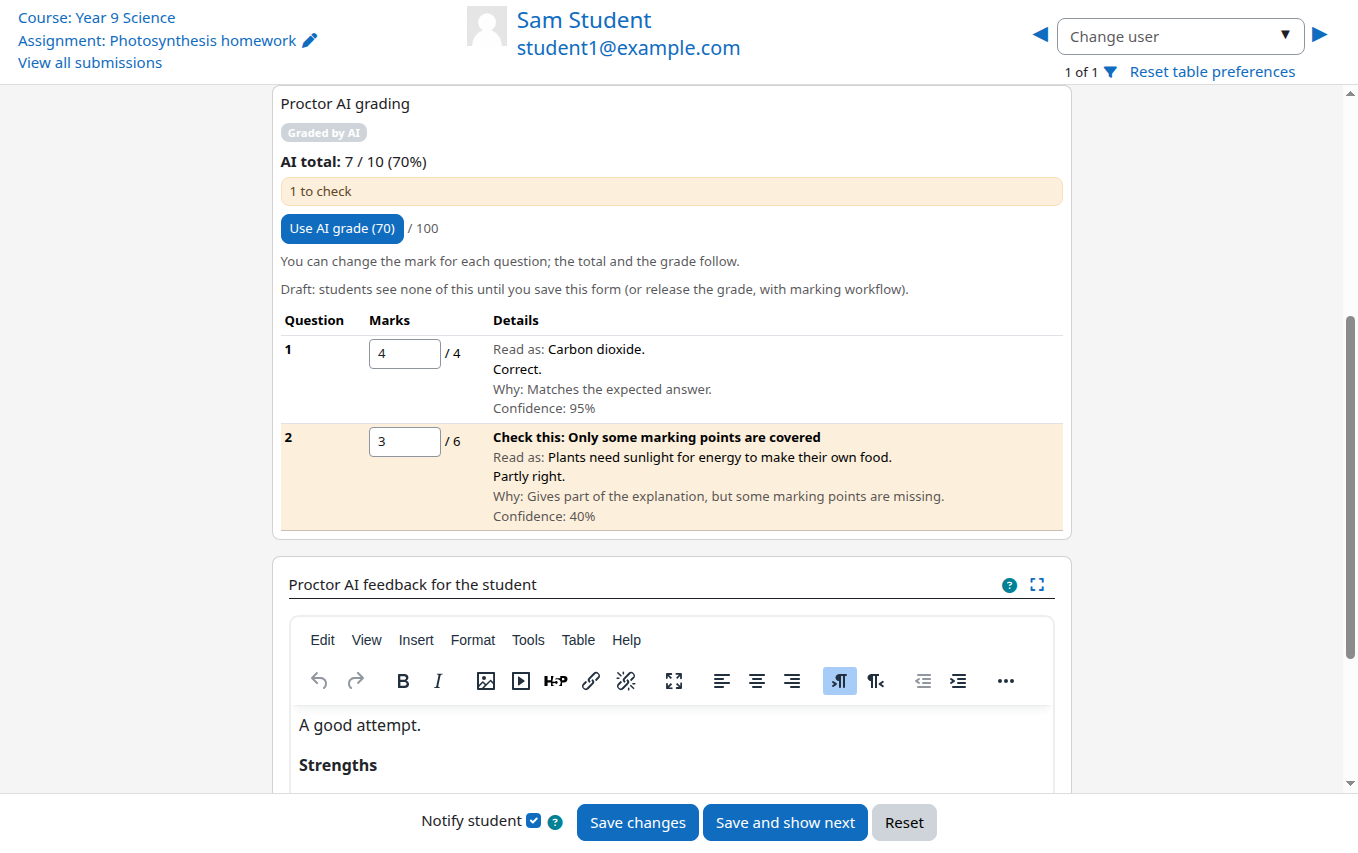
The highlighted rows matter most. When the handwriting is messy, a word is crossed out, or the answer is half off the page, the AI flags the question as Check this and gives a reason. That is where your eyes should go first.
Getting photos that are easy to read
Whether a person or an AI marks it, a clear photo saves everyone time. These are the tips we give students:
- One page per photo. Lay the page flat on a table.
- Use daylight or a bright room. Turn off the flash, it makes glare on pencil.
- Hold the phone straight above the page, not at an angle.
- Make sure the whole page is in the photo, edges included.
- Hold still for a second before taking the picture.
- Write each question number next to the answer, exactly as it appears on the question paper.
- Upload the pages in order, and check them once before submitting.
What about typed answers?
Turn on Online text as a submission type as well and students can type some answers and photograph others. The plugin grades both together as one answer sheet.
For the full setup, from installing the plugin to releasing the first grades, follow our step by step guide.
Frequently asked questions
Can Moodle grade handwritten answers automatically?
Not on its own. Moodle can display handwritten submissions, but marking them needs a teacher or a plugin like Proctor AI, which reads the handwriting and drafts marks for the teacher to check.
Should students upload photos or a PDF?
Either works. A single PDF keeps the pages in order, so it is a little easier. Phone scanner apps turn photos into a PDF in seconds.
What if the AI misreads a word?
The grader shows what the AI read for every answer. If it misread something, change the mark. Unclear answers are flagged so you see them first.